Blue star-shaped icon with five rounded points on a white background.
How It Works
What Onboarding a
New Chapter
Abstract orange brushstroke line with uneven edges on a white background.
Looks Like
Chapter OS is designed for self-serve onboarding. Pick a plan, complete checkout through Stripe, and your chapter workspace is automatically provisioned — no sales call, no waiting. Your leadership team uploads the roster, assigns chairs, and you're live.
Here's the step-by-step journey from purchase to your first forum meeting.
STEP 1
Choose Your Plan
Start by selecting the annual plan that fits your chapter's size. Plans are organized by member count, and every plan includes unlimited forums.
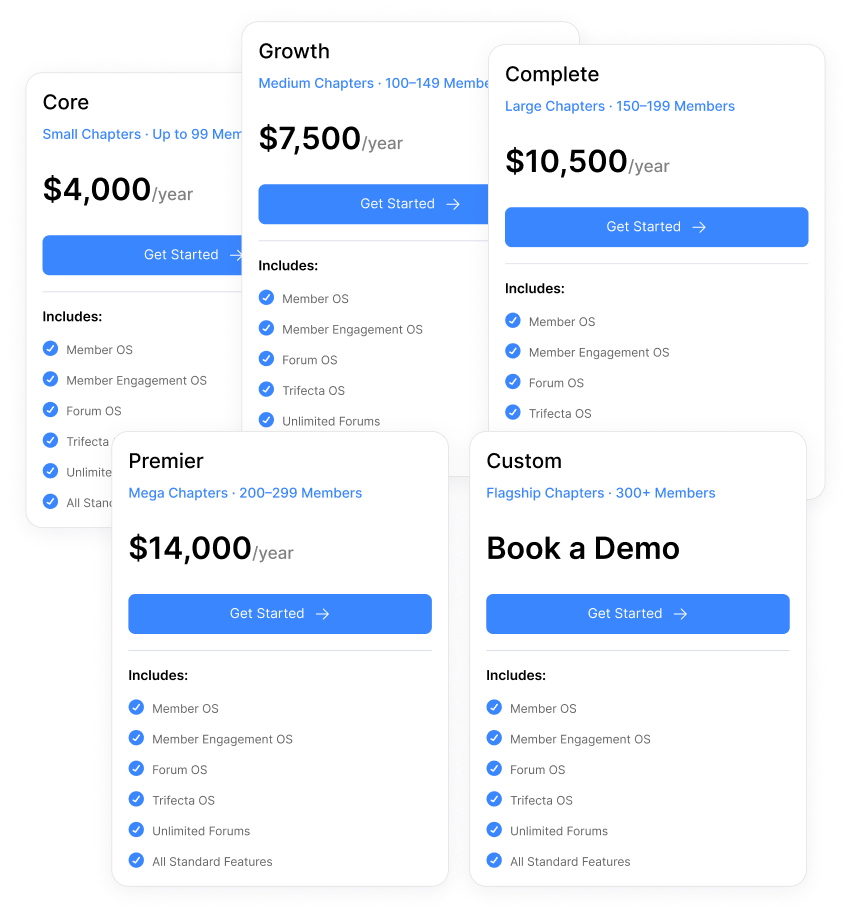
Four plans plus custom:
Core — $4,000/year, up to 99 members
Growth — $7,500/year, 100–149 members
Complete — $10,500/year, 150–199 members
Premier — $14,000/year, 200–299 members
Custom — 300+ members, book a demo
Every plan includes Member OS, Member Engagement OS, Forum OS, Trifecta OS, and all standard features.
STEP 2
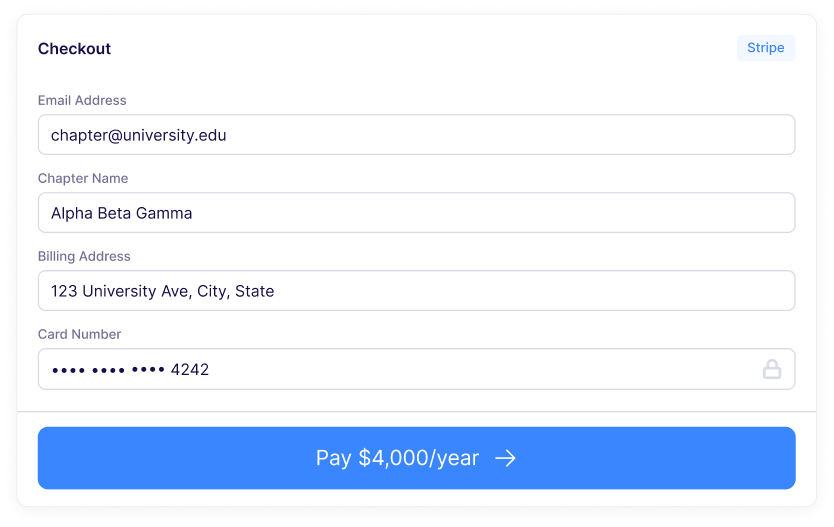
Purchase via Stripe Checkout
Click the stripe payment link for your chosen plan. You'll be taken to a hosted Strike Checkout page, no account creation needed yet.
At checkout, you enter:
Your email address
A chapter name (required)
A billing address (country is stored)
Card or payment details
Once payment clears, you'll see a thank-you page confirming your chapter is being set up. An activation email is sent to your inbox.
STEP 3
Automatic Provisioning
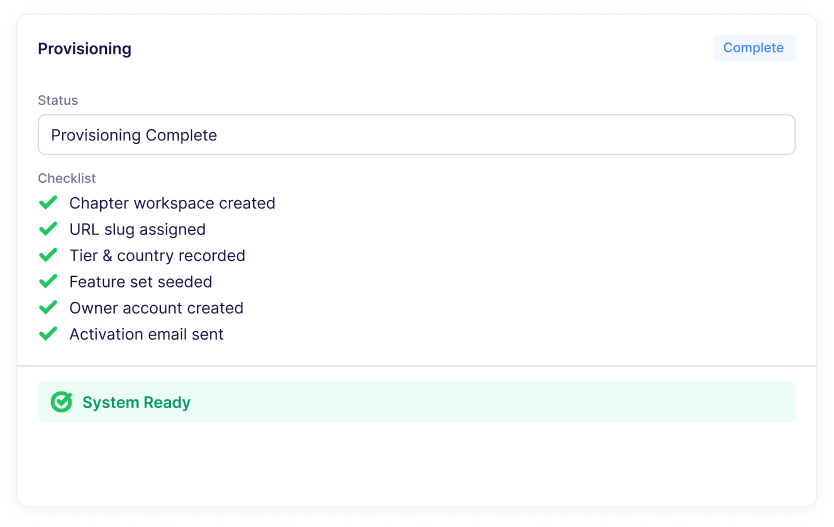
Behind the scenes, Chapter OS provisions your chapter instantly via a Stripe webhook - no manual setup by our team.
What happens automatically:
Your chapter workspace is created
A URL slug is derived from your chapter name
Your tier and country are recorded
Feature set is seeded from your plan's defaults
A locked owner account is created
You're granted the Chapter Owner role
An activation email is sent to you
The entire process takes seconds. Your chapter is live before you finish reading the confirmation email.
STEP 4
Activate Your Account
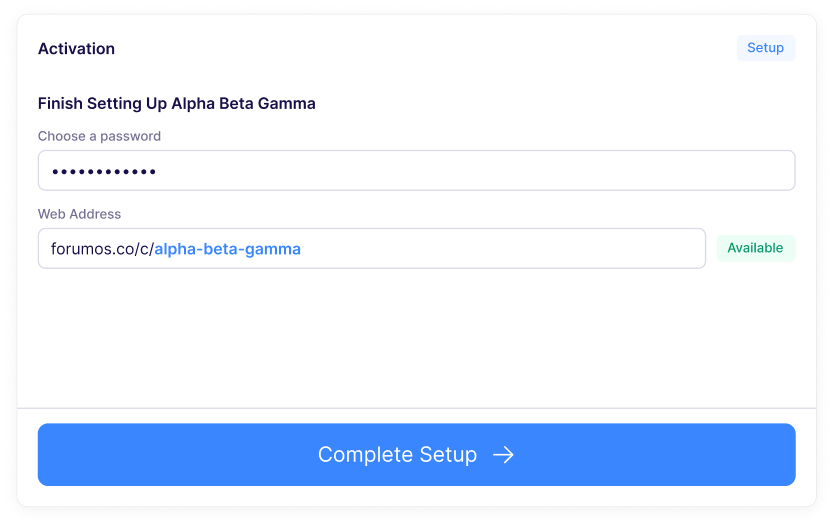
Open the activation email and click the setup link. You'll land on a page that says: "Your chapter is ready - finish setting it up here."
On the activation page, you:
Set your password (minimum 8 characters)
Choose your chapter's web address
Your URL: forumos.co/c/<your-slug>
Slug availability is checked live
Once set, the web address is permanent
Activation links expire after 30 days
Login is email + password (no MFA/SSO)
After submitting, you're signed in and land directly inside your new chapter workspace.
STEP 5
Get Your Chapter Set Up
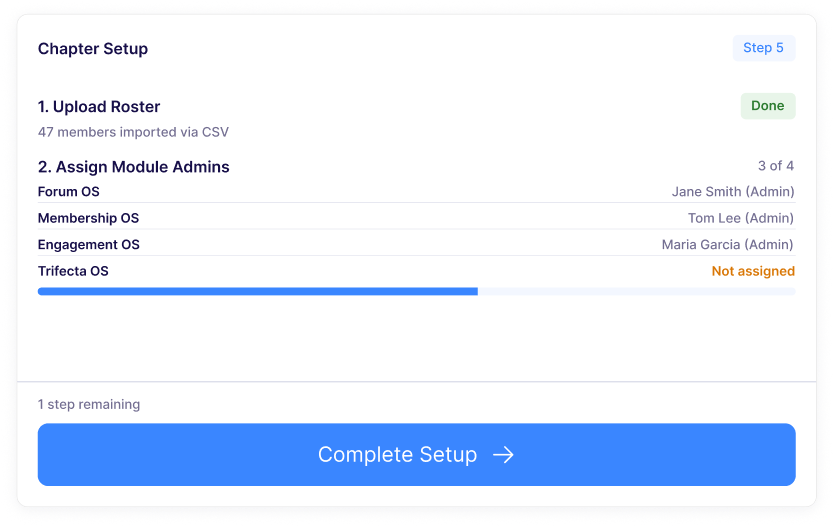
When you first enter your chapter, you'll see a one-time setup card on the chapter home: "Get your chapter set up." It guides you through two essential tasks.
The two setup steps:
Upload the current membership roster
Add members via CSV or one at a time
Assign chairs & committee members
Assign admins to each of the four modules
E.g. "3 modules assigned · 1 still needs an admin"
Steps show Done / To do pills
From here, your Chapter Owner and module admins can start configuring forums, uploading documents, and inviting team members through scoped roles.
STEP 6
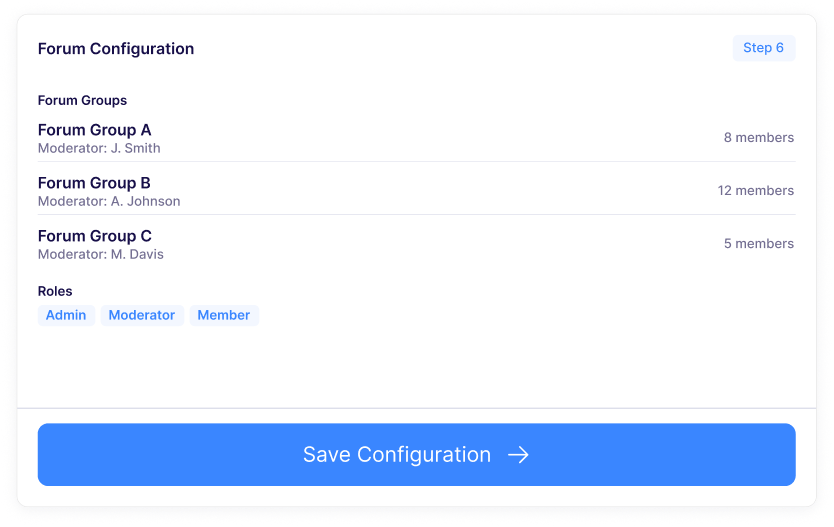
Configure Forums & Assign Roles
With your roster uploaded and chairs assigned, the Forum OS Admin creates your chapter's forum groups and assigns moderators.
Key configuration tasks:
Create forum groups with names and descriptions
Assign one moderator per forum
Seat members into their forums
Set up Forum DNA questionnaires for matching
Create custom roles and assign scoped permissions
Roles are permission bundles assigned chapter-wide, per module, or per forum. Admins, moderators, and members operate on three distinct planes.
STEP 7
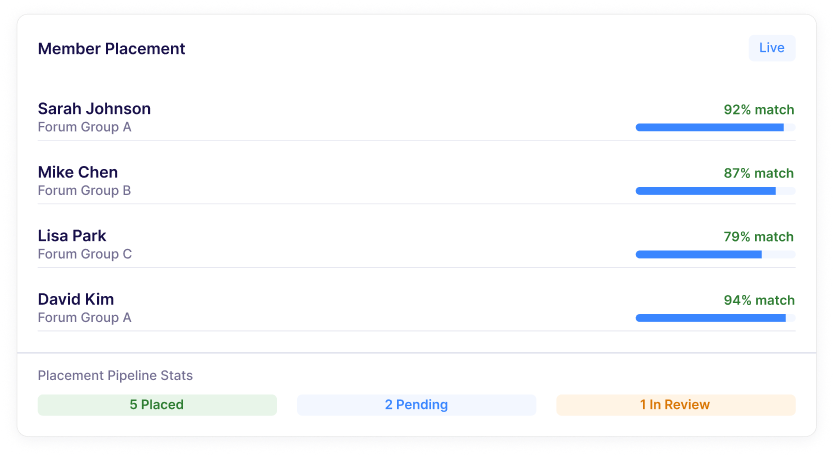
Invite and Place Members
With forums configured, your placement committee begins the seeking-member pipeline - matching candidates to the right forum using AI-powered compatibility scoring.
The placement pipeline:
Invite members to Forum OS (single or CSV)
Members complete the Forum Preferences Survey
AI ranks compatibility against every eligible forum
Moderator contacts the candidate in chat
Both sides agree on an intro meeting
Mutual approval leads to placement
90-day follow-up ensures a good fit
The Placement Process Tracker gives each candidate an 11-step progress view so everyone knows exactly where they stand.
STEP 8
Launch Forum Operations
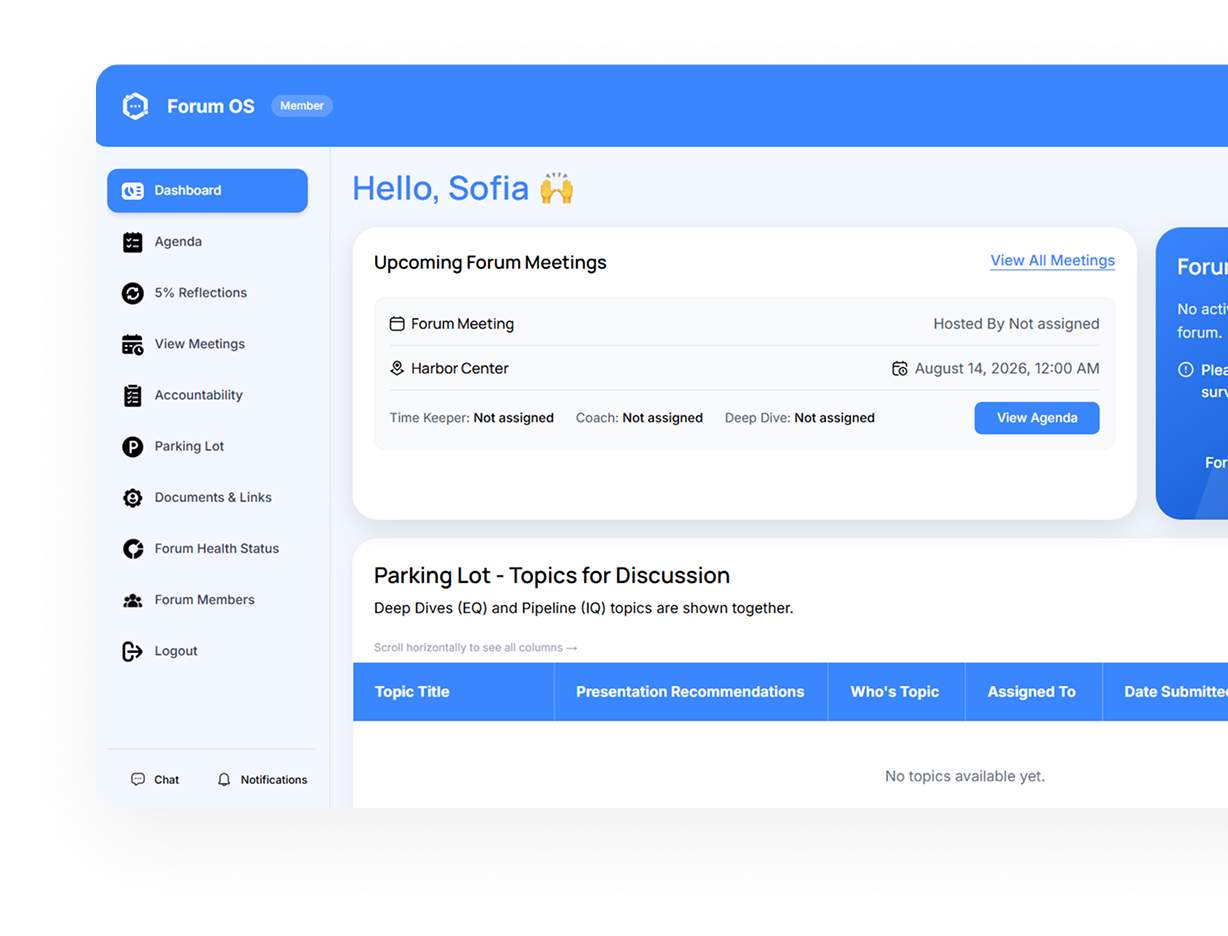
Your chapter is now fully operational. Moderators run their forums using the sky-blue workspace, and admins oversee everything from the white admin shell.
Day-to-day operations include:
Schedule and run monthly forum meetings
Build agendas from templates or the parking lot
Members write 5% Reflections before each meeting
Track accountability goals and attendance
Run Forum Health Campaigns with AI scoring
Post announcements and manage documents
View Reports & Insights across forums
Real-time chat and notifications keep everyone connected without email overload.
STEP 9
Manage, Engage, and Grow
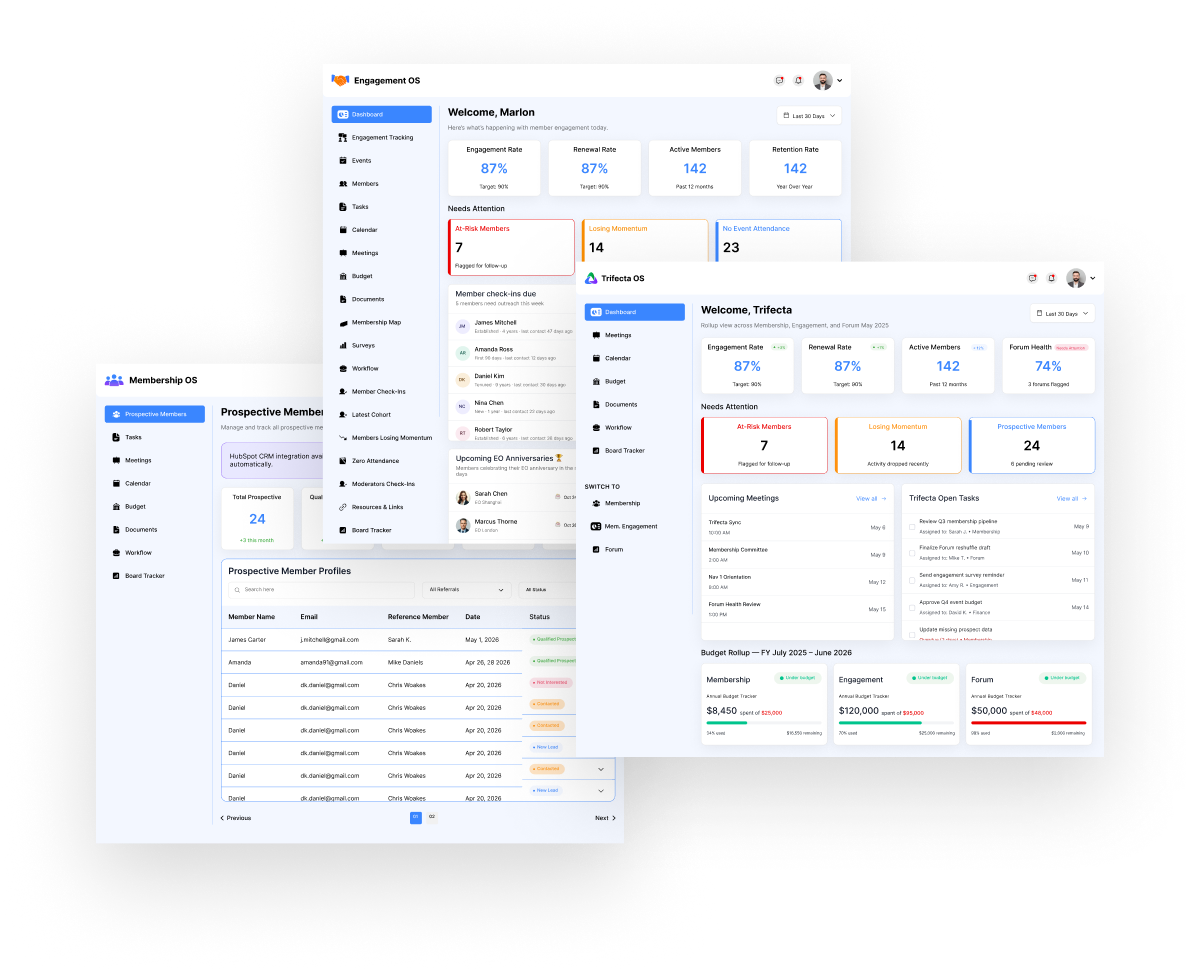
Chapter OS supports your chapter well beyond launch with tools designed for long-term engagement and governance.
Ongoing capabilities:
Member Engagement OS tracks Engage % scores
QR event check-in and attendance watch-lists
Membership Map shows member locations
Trifecta OS manages the annual chapter budget
Modules record spending, rollup always matches
Board Tracker sets quarterly goals by chapter year
Upgrade your plan anytime — prorated instantly
As your chapter grows, add more forums, upgrade your plan, and use the full depth of each module to keep your community thriving.
Ready to Launch Your Chapter?
Pick a plan, complete Stripe Checkout, and your chapter workspace is provisioned automatically. Upload your roster, assign chairs, and start running forums — all in one day. No sales call required.
Schedule a Demo